No Image

Замена вентилятора Dell Optiplex GX620

60 просмотров
07 декабря 2023

Шаг 1 Как отключить и обесточить компьютер перед ремонтом

Dell Optiplex GX620 Fan Replacement, How to unplug and discharge before repair: step 1, image 1 of 2Dell Optiplex GX620 Fan Replacement, How to unplug and discharge before repair: step 1, image 2 of 2

Выключите компьютер и отсоедините шнур питания от задней панели.

Шаг 2

Dell Optiplex GX620 Fan Replacement: step 2, image 1 of 2Dell Optiplex GX620 Fan Replacement: step 2, image 2 of 2

Нажмите и удерживайте кнопку питания около 10 секунд, затем отпустите.

Это поможет сбросить остатки энергии, накопившейся в конденсаторах, и вы сможете безопасно работать с внутренними компонентами.

Шаг 3 Разборка боковой панели Dell Optiplex GX620

Dell Optiplex GX620 Fan Replacement, Dell Optiplex GX620 Side Panel Disassembly: step 3, image 1 of 1

Когда компьютер стоит вертикально, сильно потяните за выступ на задней панели компьютера.

Когда боковая панель освободится, осторожно потяните ее в сторону от компьютера.

Если вам трудно освободить боковую панель от корпуса, возможно, вам придется потянуть за выступ немного сильнее.

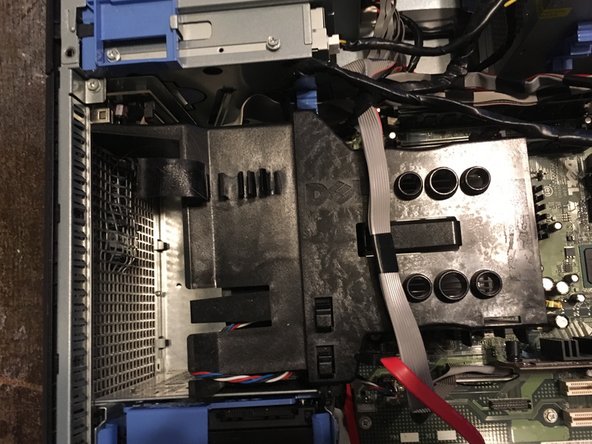
Шаг 4 Отключите жесткий диск.

Dell Optiplex GX620 Fan Replacement, Unplug your Hard drive.: step 4, image 1 of 3Dell Optiplex GX620 Fan Replacement, Unplug your Hard drive.: step 4, image 2 of 3Dell Optiplex GX620 Fan Replacement, Unplug your Hard drive.: step 4, image 3 of 3

Отключите кабели питания и передачи данных жесткого диска.

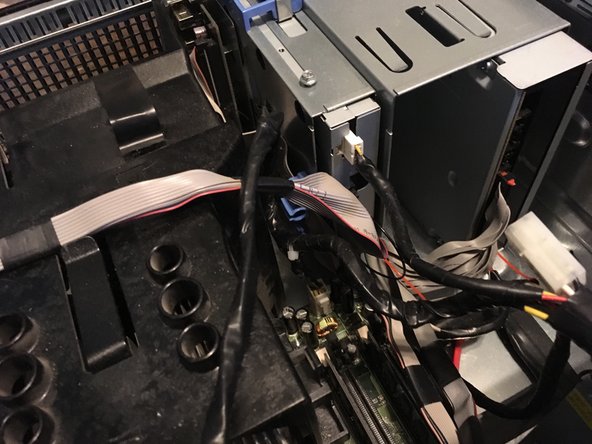
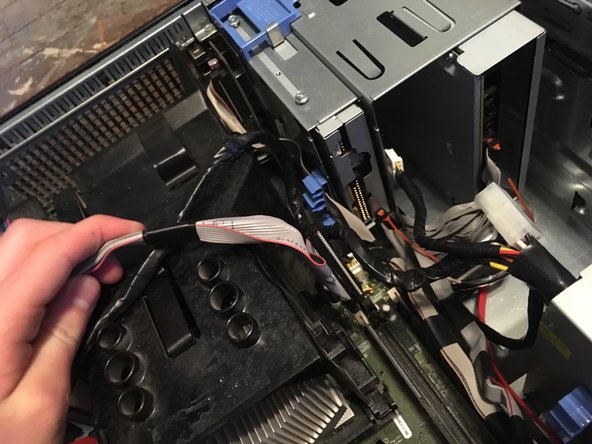
Шаг 5 Отсоедините флоппи-дисковод.

Dell Optiplex GX620 Fan Replacement, Unplug floppy drive.: step 5, image 1 of 3Dell Optiplex GX620 Fan Replacement, Unplug floppy drive.: step 5, image 2 of 3Dell Optiplex GX620 Fan Replacement, Unplug floppy drive.: step 5, image 3 of 3

Отключите кабели питания и передачи данных.

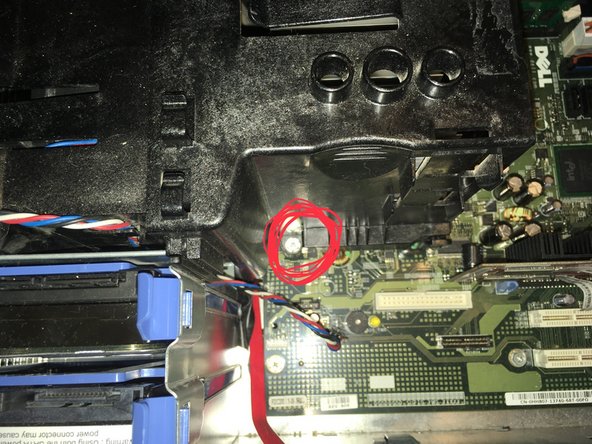
Шаг 6 Отсоедините вентилятор.

Dell Optiplex GX620 Fan Replacement, Unplug the fan.: step 6, image 1 of 2Dell Optiplex GX620 Fan Replacement, Unplug the fan.: step 6, image 2 of 2

Отключите вентилятор.

Шаг 7

Dell Optiplex GX620 Fan Replacement: step 7, image 1 of 2Dell Optiplex GX620 Fan Replacement: step 7, image 2 of 2

Выкрутите два винта Phillips #2.

Шаг 8 Снимите радиатор.

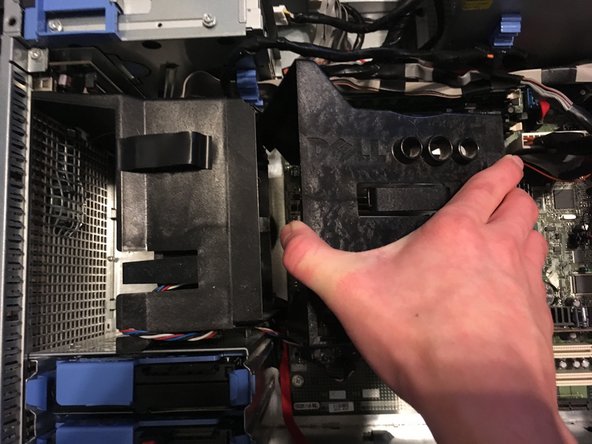
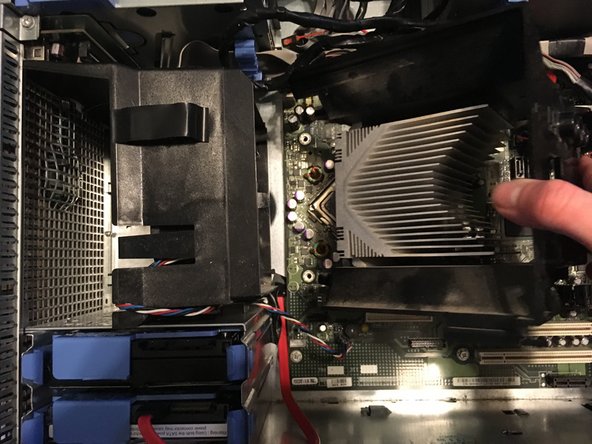
Dell Optiplex GX620 Fan Replacement, Remove the heat sink.: step 8, image 1 of 3Dell Optiplex GX620 Fan Replacement, Remove the heat sink.: step 8, image 2 of 3Dell Optiplex GX620 Fan Replacement, Remove the heat sink.: step 8, image 3 of 3

Потяните радиатор вверх.

Шаг 9

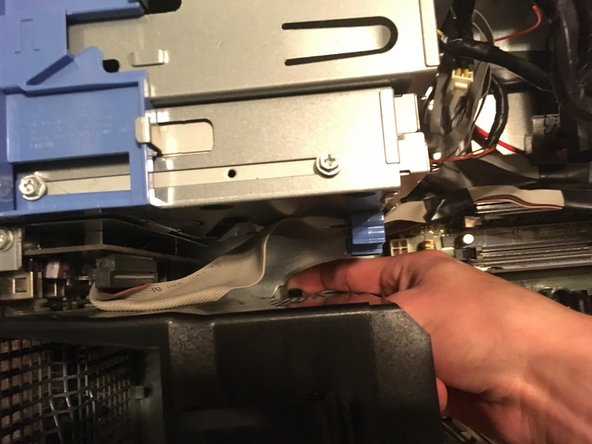
Dell Optiplex GX620 Fan Replacement: step 9, image 1 of 3Dell Optiplex GX620 Fan Replacement: step 9, image 2 of 3Dell Optiplex GX620 Fan Replacement: step 9, image 3 of 3

Потяните за два выступа и вытащите его.

Чтобы снять его, нужно приложить немало усилий.

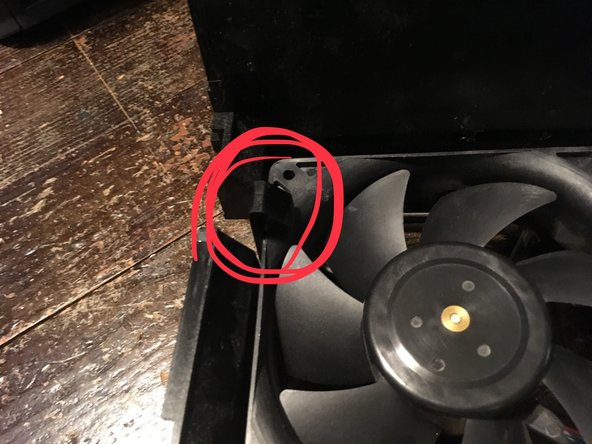
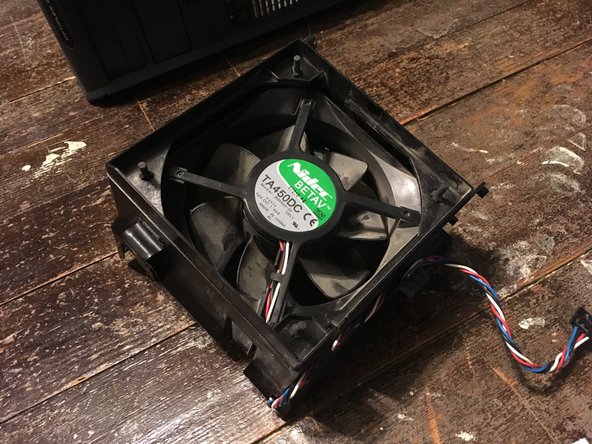
Шаг 10 Извлеките вентилятор из корпуса.

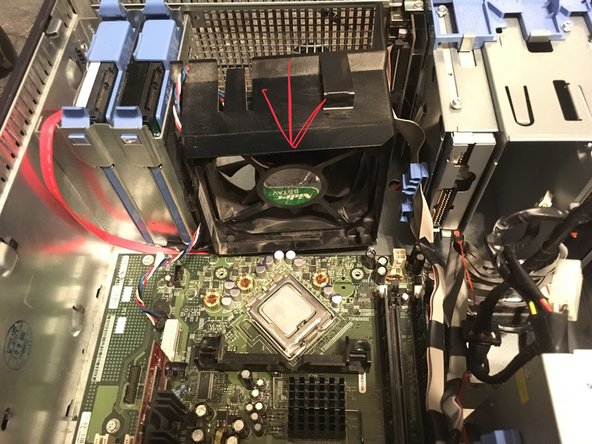
Dell Optiplex GX620 Fan Replacement, Take the fan out of its enclosure.: step 10, image 1 of 3Dell Optiplex GX620 Fan Replacement, Take the fan out of its enclosure.: step 10, image 2 of 3Dell Optiplex GX620 Fan Replacement, Take the fan out of its enclosure.: step 10, image 3 of 3

Чтобы вынуть вентилятор, нужно потянуть за два выступа и вытащить вентилятор.

Комментировать
60 просмотров
Комментариев нет, будьте первым кто его оставит

Это интересно