No Image

Замена жесткого диска ноутбука Dell Inspirion N4050

86 просмотров
09 декабря 2023

Введение

Здесь я показываю, как разобрать ноутбук Dell Inspirion N4050 клиента, чтобы заменить поврежденный жесткий диск на новый.

Шаг 1 Извлечение батареи часть 1

Dell Inspirion N4050 laptop hard drive replacement, Removing the battery part 1: step 1, image 1 of 3Dell Inspirion N4050 laptop hard drive replacement, Removing the battery part 1: step 1, image 2 of 3Dell Inspirion N4050 laptop hard drive replacement, Removing the battery part 1: step 1, image 3 of 3

Проверьте модель вашего ноутбука

Переверните его, чтобы работать на нижней части ноутбука

Откройте первую защелку для батареи

Шаг 2 Извлечение батареи часть 2

Dell Inspirion N4050 laptop hard drive replacement, Remove the battery part 2: step 2, image 1 of 3Dell Inspirion N4050 laptop hard drive replacement, Remove the battery part 2: step 2, image 2 of 3Dell Inspirion N4050 laptop hard drive replacement, Remove the battery part 2: step 2, image 3 of 3

Откройте вторую защелку в направлении, указанном стрелкой. Для этого нужно приложить больше усилий, чем в первом случае.

Батарея немного выдвинется. Аккуратно извлеките ее.

Шаг 3 Открутите нижние винты

Dell Inspirion N4050 laptop hard drive replacement, Remove the bottom screws: step 3, image 1 of 2Dell Inspirion N4050 laptop hard drive replacement, Remove the bottom screws: step 3, image 2 of 2

Открутите 8 винтов.

Используйте крестообразную отвертку 0.

Шаг 4 Извлечение клавиатуры, часть 1

Dell Inspirion N4050 laptop hard drive replacement, Removing the keyboard part 1: step 4, image 1 of 3Dell Inspirion N4050 laptop hard drive replacement, Removing the keyboard part 1: step 4, image 2 of 3Dell Inspirion N4050 laptop hard drive replacement, Removing the keyboard part 1: step 4, image 3 of 3

Поверните ноутбук клавиатурой вверх.

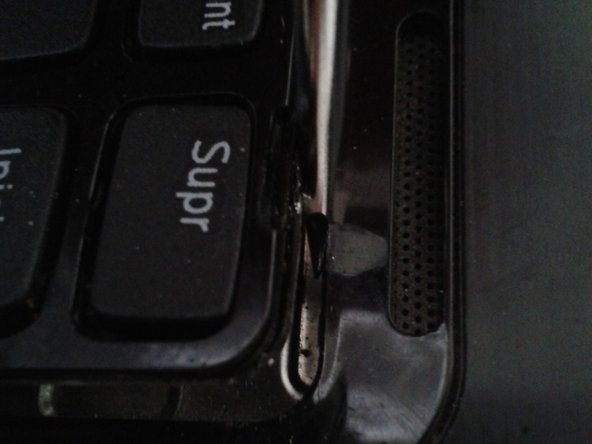
С помощью плоской отвертки отделите клавиатуру от корпуса компьютера.

Наклоните клавиатуру, как показано на рисунке. Не извлекайте ее полностью, так как она подключена к кабелю.

Шаг 5 Извлеките кабель, соединяющий клавиатуру с материнской платой

Dell Inspirion N4050 laptop hard drive replacement, Remove the cable that connects the keyboard to the motherboard: step 5, image 1 of 2Dell Inspirion N4050 laptop hard drive replacement, Remove the cable that connects the keyboard to the motherboard: step 5, image 2 of 2

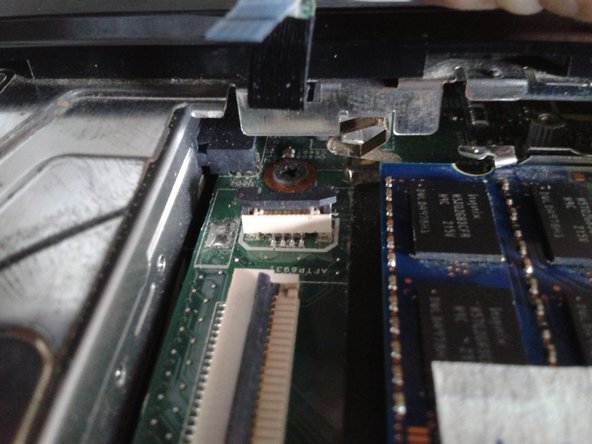
Снимите зажим, которым кабель крепится к материнской плате.

Извлеките кабель.

Шаг 6 Извлеките оперативную память

Dell Inspirion N4050 laptop hard drive replacement, Remove the RAM: step 6, image 1 of 2Dell Inspirion N4050 laptop hard drive replacement, Remove the RAM: step 6, image 2 of 2

Извлеките карты памяти, сдвинув фиксаторы в направлении, указанном стрелками.

Шаг 7 Выкрутите винты

Dell Inspirion N4050 laptop hard drive replacement, Remove the screws: step 7, image 1 of 3Dell Inspirion N4050 laptop hard drive replacement, Remove the screws: step 7, image 2 of 3Dell Inspirion N4050 laptop hard drive replacement, Remove the screws: step 7, image 3 of 3

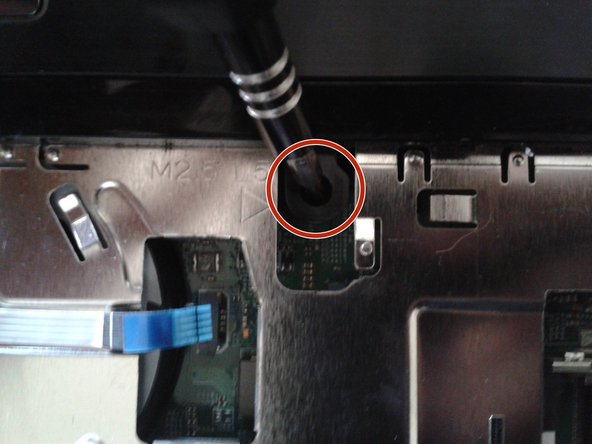
Выкрутите 3 винта.

Шаг 8 Извлеките маленькие кабели

Dell Inspirion N4050 laptop hard drive replacement, Remove the small cables: step 8, image 1 of 3Dell Inspirion N4050 laptop hard drive replacement, Remove the small cables: step 8, image 2 of 3Dell Inspirion N4050 laptop hard drive replacement, Remove the small cables: step 8, image 3 of 3

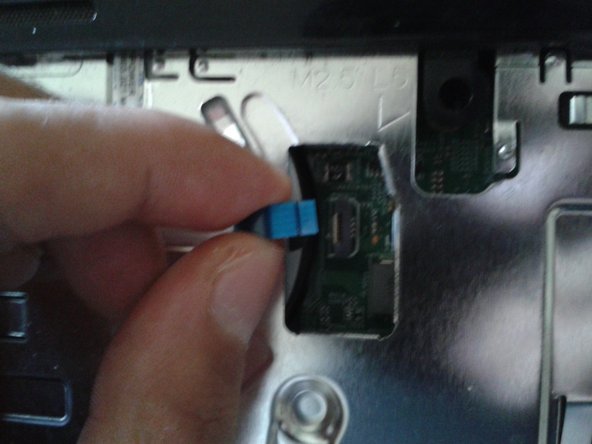
Извлеките 2 маленьких кабеля.

Шаг 9

Dell Inspirion N4050 laptop hard drive replacement: step 9, image 1 of 2Dell Inspirion N4050 laptop hard drive replacement: step 9, image 2 of 2

С помощью пластикового инструмента отделите верхнюю часть ноутбука.

Шаг 10 Внутренние части ноутбука

Dell Inspirion N4050 laptop hard drive replacement, Internal parts of the laptop: step 10, image 1 of 1

ПРОЦЕССОР

Оперативная память DDR3, 2 слота в наличии

Жесткий диск SATA

Радиатор

Блок DVD

Беспроводная сетевая карта

Батарея для внутренних часов

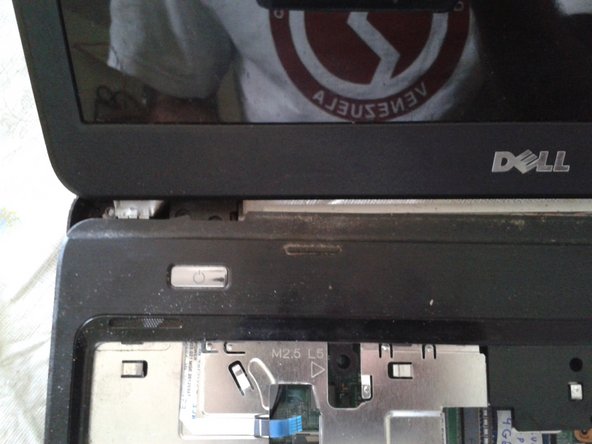
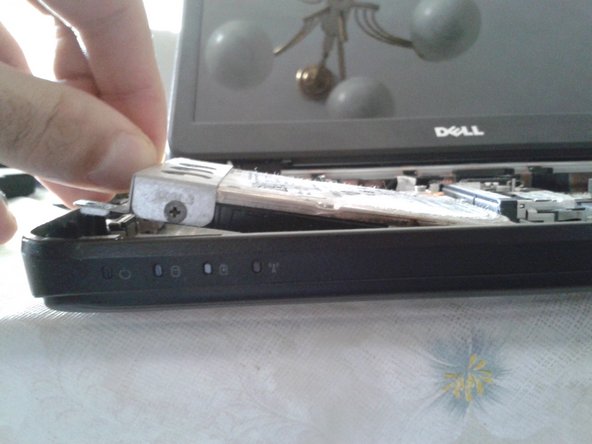
Шаг 11 Жесткий диск

Dell Inspirion N4050 laptop hard drive replacement, Hard Drive: step 11, image 1 of 3Dell Inspirion N4050 laptop hard drive replacement, Hard Drive: step 11, image 2 of 3Dell Inspirion N4050 laptop hard drive replacement, Hard Drive: step 11, image 3 of 3

Жесткий диск не имеет такого крепления к материнской плате с завода. Он подключается только через разъем SATA.

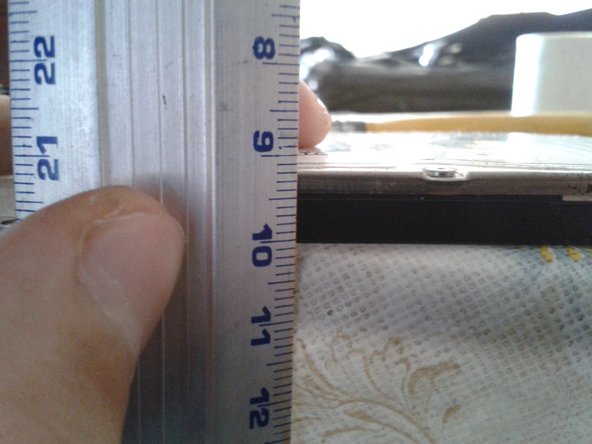
Высота 8,5 мм

Комментировать
86 просмотров
Комментариев нет, будьте первым кто его оставит

Это интересно
No Image Гайды
0 комментариев
No Image Гайды
0 комментариев
No Image Гайды
0 комментариев