No Image

Как устранить замятие бумаги в Canon Pixma TR 4520

62 просмотров
10 декабря 2023

Шаг 1 Нажмите кнопку Стоп, чтобы отменить задание

How to Fix Paper Jam in Canon Pixma TR 4520, press Stop to cancel the job: step 1, image 1 of 1

нажмите кнопку остановки

Шаг 2 Выключите принтер и отсоедините его от источника питания

How to Fix Paper Jam in Canon Pixma TR 4520, turn off the printer and unplug it from the power source: step 2, image 1 of 2How to Fix Paper Jam in Canon Pixma TR 4520, turn off the printer and unplug it from the power source: step 2, image 2 of 2

Перед отключением нажмите кнопку выключения на принтере.

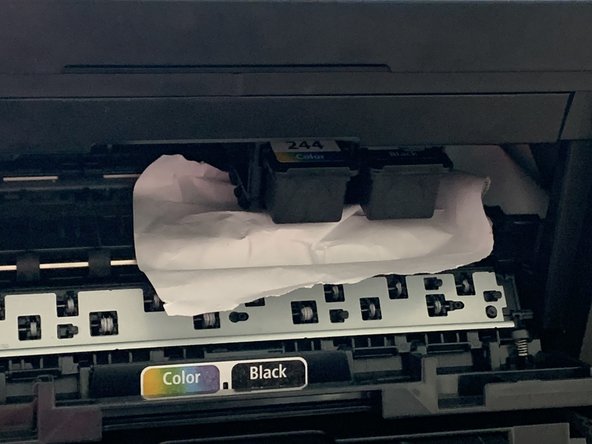
Шаг 3 Удалите все видимые части бумаги из переднего лотка

How to Fix Paper Jam in Canon Pixma TR 4520, remove any paper visible from the front tray: step 3, image 1 of 2How to Fix Paper Jam in Canon Pixma TR 4520, remove any paper visible from the front tray: step 3, image 2 of 2

Откройте передний лоток и посмотрите

Шаг 4 если он доступен для рук, медленно вытащите бумагу обеими руками (во избежание разрыва).

How to Fix Paper Jam in Canon Pixma TR 4520, if it is accessible with your hands, pull out paper slowly with both hands(avoid tearing): step 4, image 1 of 1

Если бумага рвется, удалите все, что можно, остальное мы сможем исправить на последующих этапах

Шаг 5. Если место недоступно или бумага порвана, положите принтер на бок, чтобы увидеть заднюю крышку.

How to Fix Paper Jam in Canon Pixma TR 4520, if the area Is inaccessible or paper is torn, position the printer on a side to see the rear cover: step 5, image 1 of 2How to Fix Paper Jam in Canon Pixma TR 4520, if the area Is inaccessible or paper is torn, position the printer on a side to see the rear cover: step 5, image 2 of 2

Не вытаскивайте бумагу силой

Шаг 6 Возьмите отвертку для домашнего использования с головкой, как показано на рисунке

How to Fix Paper Jam in Canon Pixma TR 4520, pick up home usage screwdriver with the head like shown on the picture: step 6, image 1 of 3How to Fix Paper Jam in Canon Pixma TR 4520, pick up home usage screwdriver with the head like shown on the picture: step 6, image 2 of 3How to Fix Paper Jam in Canon Pixma TR 4520, pick up home usage screwdriver with the head like shown on the picture: step 6, image 3 of 3

Посмотрите на форму

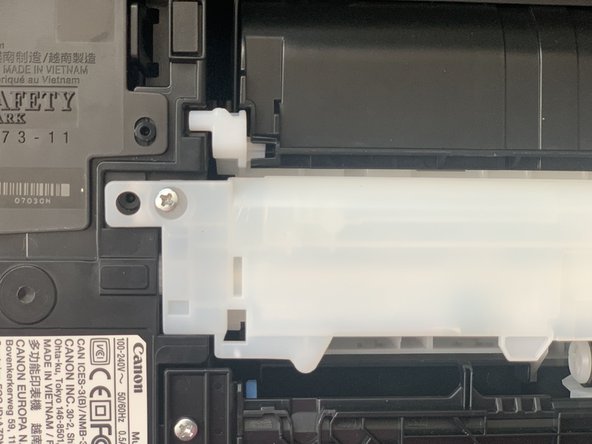
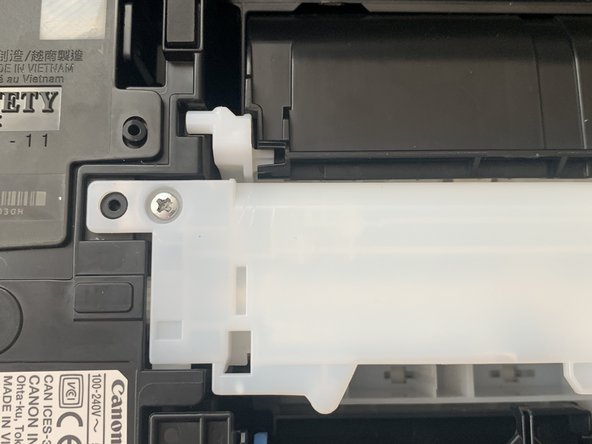
Шаг 7. Найдите два серебристых винта, которые крепят крышку транспортного блока с задней стороны

How to Fix Paper Jam in Canon Pixma TR 4520, look for two silver screws that hold transport unit cover from the rear end: step 7, image 1 of 2How to Fix Paper Jam in Canon Pixma TR 4520, look for two silver screws that hold transport unit cover from the rear end: step 7, image 2 of 2

посмотрите на круговую аннотацию

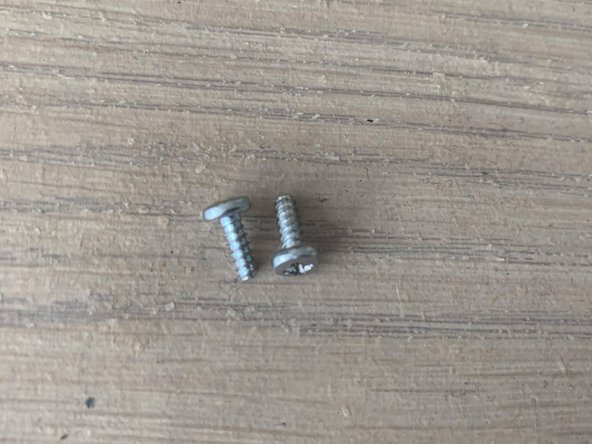
Шаг 8 Раскрутите винт, поверните его против часовой стрелки (в направлении «свободно») и продолжайте вращать отвертку.

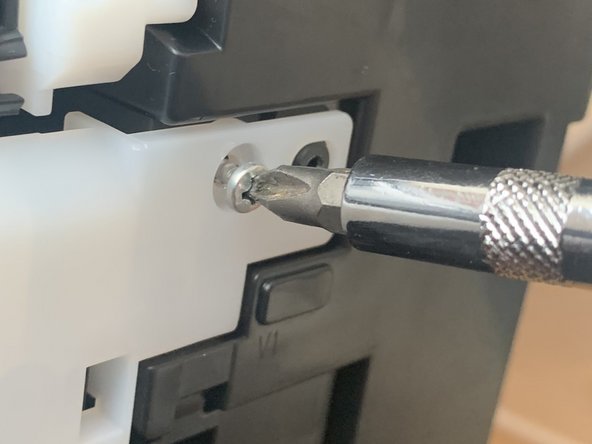
How to Fix Paper Jam in Canon Pixma TR 4520, untwist the screw, turn the screw into counter clockwise ("loose" direction) and keep turning the screwdriver: step 8, image 1 of 3How to Fix Paper Jam in Canon Pixma TR 4520, untwist the screw, turn the screw into counter clockwise ("loose" direction) and keep turning the screwdriver: step 8, image 2 of 3How to Fix Paper Jam in Canon Pixma TR 4520, untwist the screw, turn the screw into counter clockwise ("loose" direction) and keep turning the screwdriver: step 8, image 3 of 3

Медленно двигайте отвертку, пока винт не выйдет из зацепления.

Шаг 9 повторите для второго винта

How to Fix Paper Jam in Canon Pixma TR 4520, repeat for the second screw: step 9, image 1 of 2How to Fix Paper Jam in Canon Pixma TR 4520, repeat for the second screw: step 9, image 2 of 2

Храните винты в безопасном месте

Шаг 10 Крышка транспортного блока отсоединится

How to Fix Paper Jam in Canon Pixma TR 4520, transport unit cover will become loose: step 10, image 1 of 2How to Fix Paper Jam in Canon Pixma TR 4520, transport unit cover will become loose: step 10, image 2 of 2

Будьте осторожны при снятии блока, вы же не хотите его повредить

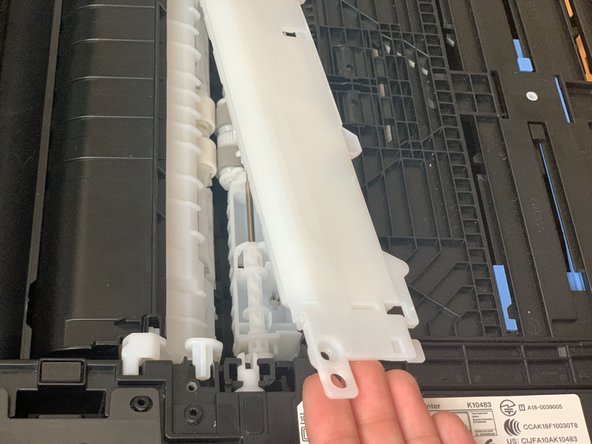
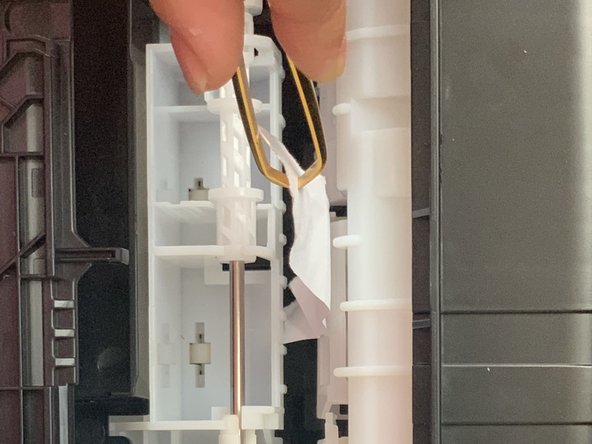
Шаг 11 Снимите транспортный блок и извлеките застрявшую бумагу

How to Fix Paper Jam in Canon Pixma TR 4520, remove the transport unit and reveal jammed paper: step 11, image 1 of 3How to Fix Paper Jam in Canon Pixma TR 4520, remove the transport unit and reveal jammed paper: step 11, image 2 of 3How to Fix Paper Jam in Canon Pixma TR 4520, remove the transport unit and reveal jammed paper: step 11, image 3 of 3

Вытащите его руками или, если за него трудно ухватиться, возьмите пинцет.

Шаг 12 Положите транспортный блок на место и удерживайте его там

How to Fix Paper Jam in Canon Pixma TR 4520, put the transport unit back in its place and hold it there: step 12, image 1 of 2How to Fix Paper Jam in Canon Pixma TR 4520, put the transport unit back in its place and hold it there: step 12, image 2 of 2

Возьмите отвертку и винты

Шаг 13 Положите винты на место по одному и поверните их по часовой стрелке, чтобы затянуть.

How to Fix Paper Jam in Canon Pixma TR 4520, put the screws back in place one at a time and turn them in clockwise direction to "tighten" them up: step 13, image 1 of 3How to Fix Paper Jam in Canon Pixma TR 4520, put the screws back in place one at a time and turn them in clockwise direction to "tighten" them up: step 13, image 2 of 3How to Fix Paper Jam in Canon Pixma TR 4520, put the screws back in place one at a time and turn them in clockwise direction to "tighten" them up: step 13, image 3 of 3

Вы знаете, что винты достаточно затянуты, если они больше не двигаются

Комментировать
62 просмотров
Комментариев нет, будьте первым кто его оставит

Это интересно
No Image Гайды
0 комментариев
No Image Гайды
0 комментариев
No Image Гайды
0 комментариев